How to Automate Agency Client Reporting with n8n (Step by Step)
Step-by-step n8n workflow for agency client reports: client sheet, Meta and Google Ads data, Code node, AI summary, manager approval, Gmail.
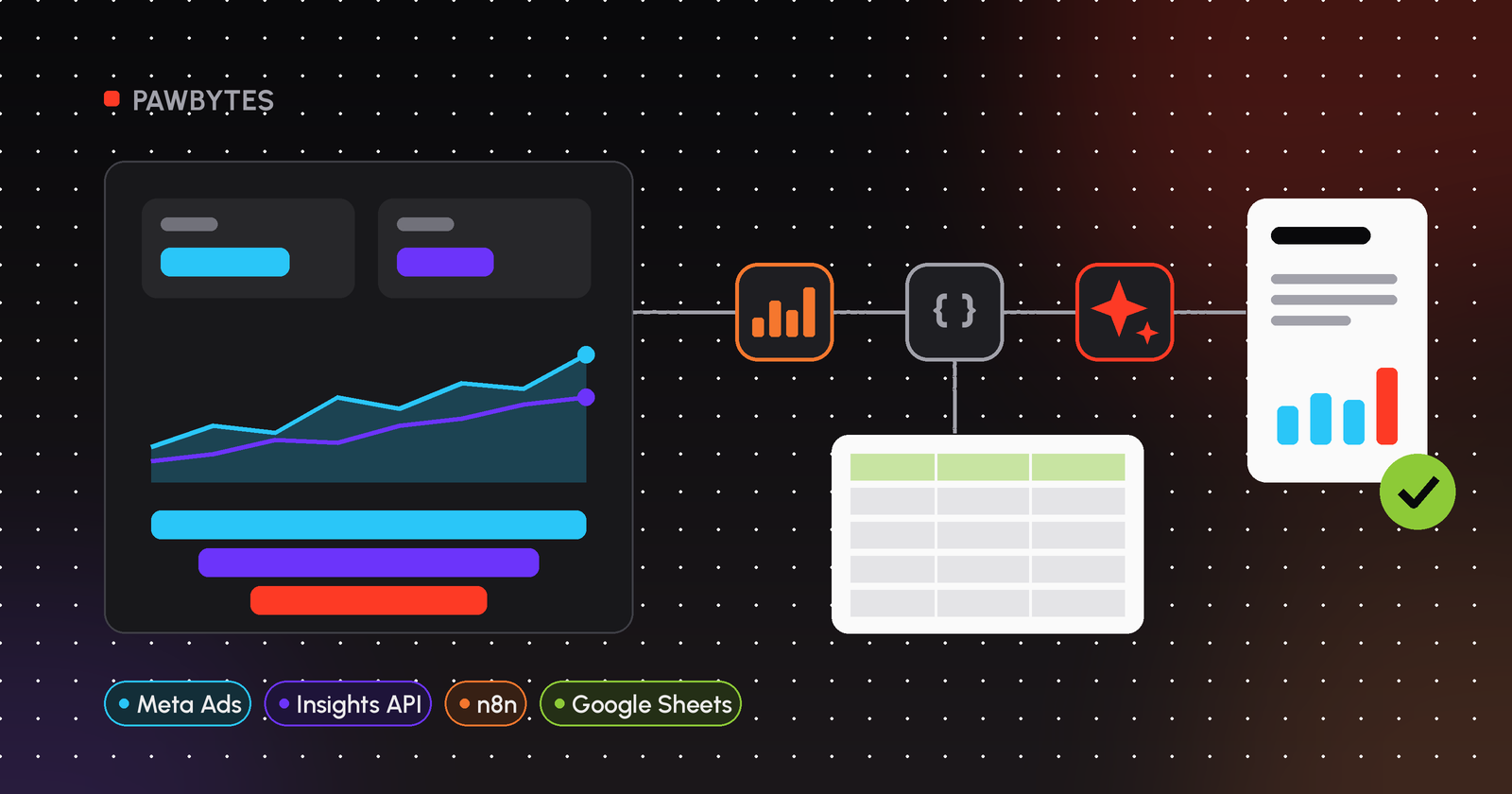
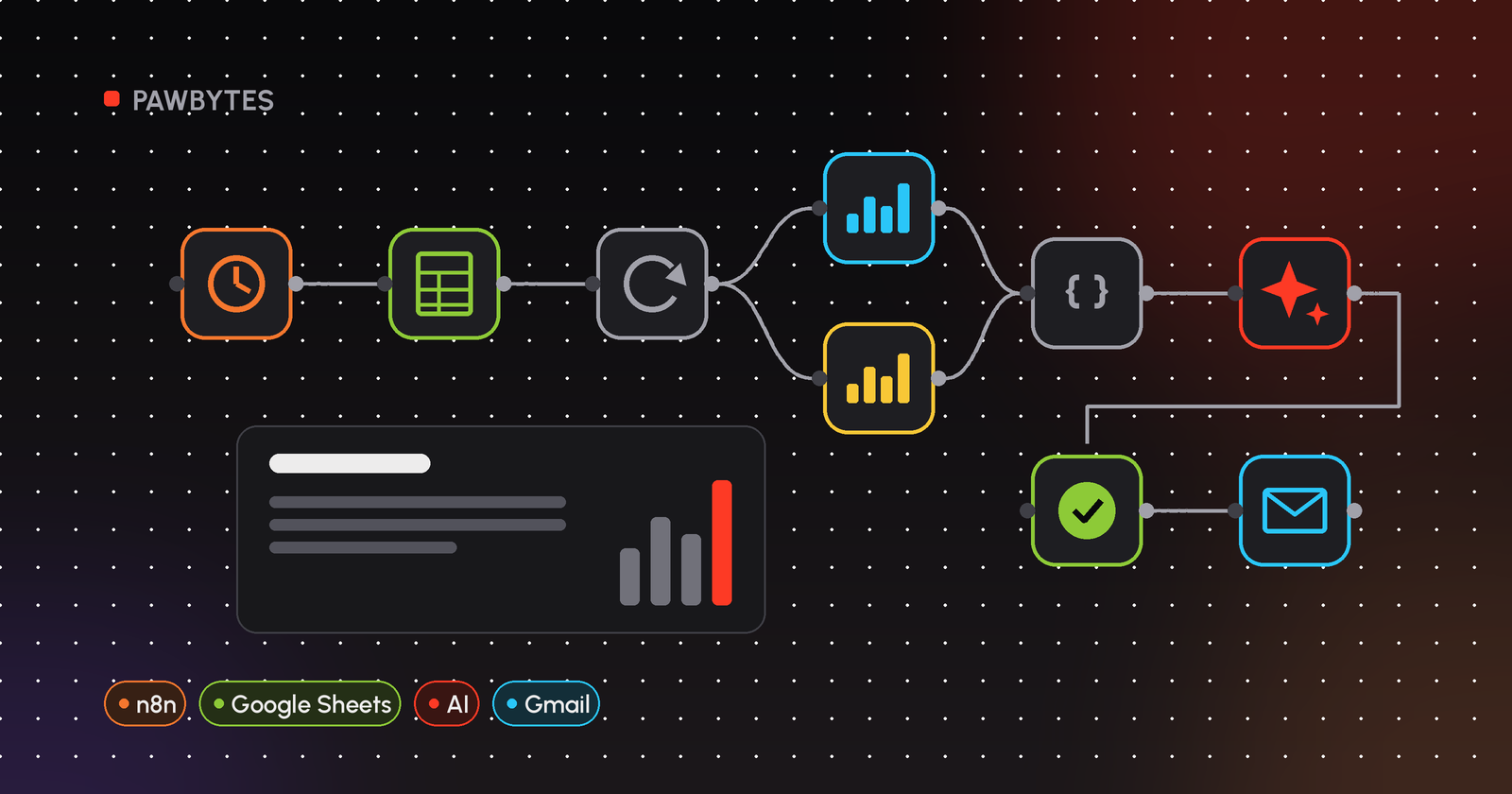
To automate agency client reports with n8n, build one workflow: a Schedule Trigger starts it, Google Sheets lists clients, Loop Over Items handles each client, the Facebook Graph API node feeds Meta data straight into a Code node, an optional Google Ads path runs separately, an LLM drafts the summary, and Gmail sends it once approved.
This guide is part of our series on automated ad reporting for marketing agencies. The pillar covers the why. This page is the build. It's the same shape I use when I set up reporting for agencies on n8n, with Dify on the AI side.
What do you need before you start?
- An n8n instance. n8n Cloud or self-hosted both work. Everything below uses built-in nodes.
- Meta access. A Meta app and an access token with the
ads_readpermission for the ad accounts you report on. For agency use, a system user token from Business Manager is easier to keep alive than a personal token. - Google Ads access (if you report on Google Ads). A Google Ads credential in n8n plus a developer token from your manager account.
- A Google Sheet that acts as your client register, and a second tab for the send log.
- An LLM. Either a chat model connected to n8n's Basic LLM Chain node, or a Dify app you call over its API.
- Gmail or Slack for approvals and delivery.
What does the workflow look like?
It starts as one chain, splits into two separate data paths after Loop Over Items, then joins again before the report:
- Start:
Schedule Trigger → Google Sheets (Get Row(s)) → Loop Over Items - Meta path:
Loop Over Items → Facebook Graph API → Code (Meta metrics) - Google Ads path (optional):
Loop Over Items → HTTP Request (Google Ads API v25) → its own processing node (a separate Code or Edit Fields node) - After both paths:
Merge → Basic LLM Chain (or HTTP Request to Dify) → Gmail (Send and Wait for Approval) → If → Gmail (Send) → Google Sheets (Append Row)
The two paths never share a node until the Merge. In particular, the Google Ads HTTP Request never sits between the Facebook Graph API node and the Meta Code node. If you only report on Meta, skip the Google Ads path and the Merge.
Each step is below.
How do you build it, step by step?
Step 1: Set up the client register in Google Sheets
One row per client. The columns I use:
Column | Example | Why |
|---|---|---|
client_name | Client A | Used in the email and the prompt |
active | TRUE | Lets you pause a client without deleting the row |
meta_ad_account_id | 1234567890 | Without the |
google_ads_customer_id | 1234567890 | No dashes |
result_action_type | lead | Which Meta |
target_cost_per_result | (client's own target) | For the "on/off target" line |
report_language | en | Passed to the prompt |
recipient_email | client@example.com | Where the approved report goes |
approver_email | manager@youragency.com | Who approves it |
Keep the rules in the sheet, not in the workflow. Then adding a client doesn't mean editing nodes.
Step 2: Add a Schedule Trigger
Set the Trigger Interval to Weeks or Months, depending on the reporting cadence. If some clients are weekly and some monthly, use two triggers, or add a cadence column and filter in the next step.
Step 3: Read active clients
Add a Google Sheets node, operation Get Row(s), and filter on active = TRUE. Each row becomes one n8n item.
Step 4: Loop over clients
Add Loop Over Items with a small batch size (1 is fine). It keeps one client's failure from blocking the rest, and it keeps you within API rate limits. If you hit limits, put a Wait node inside the loop.
Step 5: Pull Meta Ads data
Add a Facebook Graph API node:
- Host URL: Default
- HTTP Request Method: GET
- Graph API Version: a current version
- Node:
act_{{ $json.meta_ad_account_id }} - Edge:
insights - Options → Fields:
campaign_name,spend,impressions,clicks,ctr,actions - Options → Query Parameters:
level=campaign,date_preset=last_month(orlast_7dfor weekly)
The Meta-specific details, including time_range, pagination and how actions works, are in our guide to automating Meta Ads reporting with n8n.
Step 6: Pull Google Ads data (optional)
n8n's Google Ads node covers campaign lookups, but for reporting you'll want a GAQL query. Use an HTTP Request node:
- Method: POST
- URL:
https://googleads.googleapis.com/v25/customers/{{ $json.google_ads_customer_id }}/googleAds:searchStream - Authentication: Predefined Credential Type → your Google Ads credential
- Headers:
developer-token, pluslogin-customer-idif you access the account through a manager account - Body (JSON): a query such as
SELECT campaign.name, metrics.cost_micros, metrics.impressions,
       metrics.clicks, metrics.conversions
FROM campaign
WHERE segments.date DURING LAST_MONTH
Note that cost comes back in micros, so divide by 1,000,000. More in Google Ads report automation with n8n.
Keep this on its own path: connect the HTTP Request node to Loop Over Items, not to the Facebook Graph API node, and follow it with its own processing node (a separate Code or Edit Fields node) that converts cost_micros and shapes the rows. The Meta Code node in Step 7 doesn't read Google Ads data. If you use both platforms, join the two paths with a Merge node after both processing nodes.
Step 7: Calculate metrics in a Code node
API responses aren't report-ready. Meta returns numbers as strings, and results sit inside the actions list. A Code node (JavaScript, "Run Once for All Items") turns the response into clean rows and totals:
const client = $('Loop Over Items').first().json;
const rows = $input.first().json.data || [];

const campaigns = rows.map(r => {
  const hit = (r.actions || []).find(a => a.action_type === client.result_action_type);
  const results = hit ? Number(hit.value) : 0;
  const spend = Number(r.spend || 0);
  return {
    campaign: r.campaign_name,
    spend,
    impressions: Number(r.impressions || 0),
    clicks: Number(r.clicks || 0),
    results,
    cost_per_result: results ? +(spend / results).toFixed(2) : null,
  };
});

const spend = campaigns.reduce((s, c) => s + c.spend, 0);
const results = campaigns.reduce((s, c) => s + c.results, 0);

return [{ json: {
  client_name: client.client_name,
  report_language: client.report_language,
  target_cost_per_result: Number(client.target_cost_per_result) || null,
  spend: +spend.toFixed(2),
  results,
  cost_per_result: results ? +(spend / results).toFixed(2) : null,
  campaigns,
}}];
Wiring note: the Facebook Graph API node must sit directly before this Code node. If any other node sits between them (for example the Google Ads HTTP Request from Step 6), every client's spend silently comes out as 0, with no error. The snippet handles Meta data only, and it reads only the first page of Insights results (no pagination yet).
Do the maths here, not in the prompt. LLMs are unreliable at arithmetic. Code isn't.
Step 8: Draft the summary with AI
Pass the processed data (the Meta Code node output, merged with the Google Ads path if you use one) to a Basic LLM Chain node with a chat model, or call your Dify app from an HTTP Request node. The prompt I start from:
You write short ad performance summaries for a marketing agency's client. Write in {{ report_language }}. Use only the numbers in the data below. Do not invent figures, causes or comparisons that aren't in the data. Write 2 short paragraphs: what happened this period, and whether cost per result is above or below the target. End with one suggested next step, phrased as a suggestion for the account manager to confirm.
Per-client tone and rules can live in the sheet too, as an extra column added to the prompt.
Step 9: Get manager approval
Add a Gmail node with the Send and Wait for Approval operation, sent to approver_email. Include the summary and the campaign table. Set Type of Approval to Approve and Disapprove so the manager can reject a draft. Then add an If node on the approval result: approved goes to sending, disapproved goes to a note for the account manager.
If your team lives in Slack, the Slack node's Send and Wait for Response operation does the same job. For multi-step approvals, n8n's docs suggest the Wait node.
Step 10: Send and log
On the approved branch, a Gmail node (Send, Email Type HTML) sends the report to recipient_email. Turn off Append n8n Attribution in the options. Then a Google Sheets node (Append Row) writes client, period, sent time and approver to the log tab.
If clients expect a PDF, n8n has no built-in HTML-to-PDF node. Render it through an external service called from an HTTP Request node, and attach the file in the Gmail node's Attachments option.
How do you handle errors?
- Set the API nodes' On Error setting to continue via the error output, and route failures to a Slack or email alert. One broken token shouldn't stop 30 other reports.
- Add a separate workflow with an Error Trigger node, so you hear about crashes you didn't anticipate.
- Watch for expired Meta tokens and removed ad account access. Those are the most common reasons a run fails.
Manual vs n8n reporting: what changes?
Manual | n8n workflow | |
|---|---|---|
Data collection | Log in and export per client | API pull on a schedule |
Calculations | Spreadsheet formulas, copied by hand | Code node, same logic every time |
Summary | Written from scratch | AI draft from verified numbers, edited by a person |
Approval | Informal | Built-in approve/disapprove step |
Record of what was sent | Sent folder | Log sheet with every run |
FAQ
What is the step-by-step way to automate agency client reports with n8n?
Schedule Trigger → read clients from Google Sheets → Loop Over Items → Meta path: Facebook Graph API node → Code node. Optional Google Ads path, separate: HTTP Request → its own processing node. Then Merge → AI draft → Gmail Send and Wait for Approval → send and log.
Is n8n a good fit for marketing agencies?
For reporting, yes, if you have someone comfortable with APIs and a bit of JavaScript. You get per-client logic, your own AI prompts and a human approval step in one workflow. If you want zero build work, an off-the-shelf reporting tool is simpler.
Does n8n have a Meta Ads integration?
Yes, through the Facebook Graph API node. Set Node to act_<ad account ID> and Edge to insights, then choose fields such as spend, impressions, clicks and actions.
Can n8n pull Google Ads reports?
Yes. The built-in Google Ads node handles campaign lookups. For reporting metrics, call the Google Ads API with a GAQL query from an HTTP Request node using your Google Ads credential.
Can the reports be sent automatically without review?
Technically yes, but I don't recommend it. Keep the Gmail or Slack send-and-wait step so a person reads every AI draft before a client sees it.
Can n8n send reports to Slack instead of email?
Yes. Use the Slack node to post the approved summary to a client or internal channel, or use its Send and Wait for Response operation for the approval step.
Related guides
- How to automate Meta Ads reporting with n8n
- Google Ads report automation with n8n
- AI ad reporting dashboard demo
- Claude Code marketing skills for agencies
- Back to the guide: automated ad reporting for agencies
Want this workflow running on your accounts?
Book a free AI audit. We'll look at how your team reports to clients today and map which steps n8n can take over, and where a person should keep the final say.